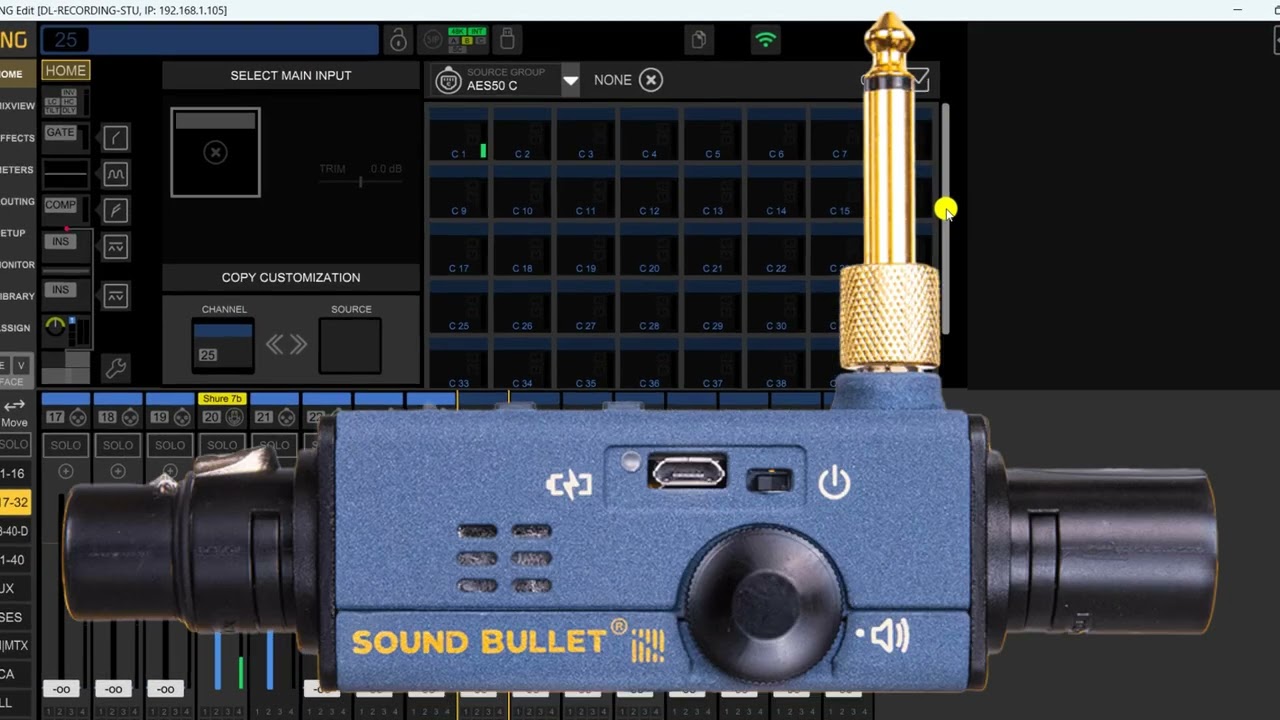
Behringer WING Rack AES50 Input Routing Explained
The Behringer WING Rack offers powerful AES50 input routing capabilities, allowing you to connect compatible digital stage boxes, mixers, and other AES50 devices. Whether you’re setting up a church sound system, a live performance, or a recording studio, understanding how to route AES50 inputs is essential.
In this tutorial, we’ll look at how AES50 works, how to select your input sources, and how to assign those sources to channels on your WING Rack.
What Is AES50 on the Behringer WING?
AES50 is a digital audio networking protocol designed to transmit multiple channels of high-quality audio between compatible devices with very low latency. The Behringer WING operates at a 48 kHz sample rate and provides three AES50 ports labeled A, B, and C. Each port supports up to 48 audio channels in each direction when connected to compatible equipment.
AES50 connections commonly use shielded CAT5e cabling. Although AES50 uses Ethernet-related technology and connectors, it is not the same as a conventional computer network connection.
How to Configure AES50 Inputs on the WING Rack
- Connect your compatible AES50 stage box or other device to the appropriate AES50 port on the WING Rack.
- Verify that the connected devices have established a proper AES50 connection.
- Open the routing interface on the WING Rack.
- Locate the available input sources and select the AES50 port you want to use: A, B, or C.
- Identify the AES50 input channel carrying the audio signal you want to use.
Remember that the physical input on a stage box and the AES50 channel carrying that signal must correspond to the routing configuration of the connected equipment.
Assigning AES50 Sources to WING Channels
One of the advantages of the Behringer WING is its flexible source-based routing system. Once your AES50 inputs are available, you can assign them to the channel strips you want to use. For example, an input arriving on AES50 A channel 1 can be assigned to a WING channel strip. Other AES50 inputs can be assigned to additional strips as needed.
You can also customize your channel names, colors, and icons to make your mixing layout easier to understand. This flexibility is especially useful when working with multiple stage boxes, separate monitor mixes, or complex live sound systems.
Monitoring and Troubleshooting AES50 Inputs
After assigning your AES50 sources, verify that audio is reaching the correct channels. Check your input meters and use the WING’s monitoring functions to confirm that the expected signal is present. If you’re not receiving audio, verify the AES50 connection, confirm the correct port and channel assignments, and check the routing configuration of the connected device.
AES50 provides low-latency digital audio transport. However, additional processing or external devices in your overall signal path can introduce their own latency.
Additional AES50 Routing Tips
- Firmware: Keep your WING firmware updated when appropriate for your system.
- Backup Settings: Save your routing configurations so they can be restored when needed.
- Documentation: Refer to the official Behringer WING documentation for details specific to your firmware version. (Ya, we know, but we do need to list this as an option!)
Watch the Behringer WING Rack AES50 Input Routing Tutorial
The short video below demonstrates how easy it is to set up AES50 input routing on the Behringer WING Rack. Follow along to see how the input sources are selected and assigned within the routing interface. Want to learn more about digital mixer routing? Read my Behringer WING Routing Explained tutorial, or discover how to use AES50 Channels 33–48 on the X32 and M32. For personalized help, visit my X/M32 & WING Routing Masterclass.