Developed by D & L Recording Studio LLC
October 24th, 2026
This project began with a simple idea: Could we create a program that reads a WING snapshot and automatically identifies and organizes its recorded audio tracks? That idea has grown into something much larger. Through many hours of development, testing, troubleshooting, and a few conversations, the WING Multitrack Manager has continued to evolve.
What if you could take your Behringer WING multitrack recordings, load your mixer snapshot, and automatically create an organized REAPER project with the correct channel names, colors, and individual audio tracks automatically? And what if that same program could examine your WING snapshot and provide detailed information about your channel settings, signal routing, EQ, dynamics, inserts, buses, mains, and more?
That’s exactly what we’ve been developing! Introducing the WING Multitrack Manager, a Windows application designed to simplify multitrack recording management, virtual soundcheck preparation, and Behringer WING mixer analysis. Whether you’re mixing live sound, working with a church worship team, recording a concert, or troubleshooting another engineer’s mixer configuration, this program is being designed to save time and provide valuable information.
From WING LIVE SD Cards to REAPER & Other Major DAWs— Automatically!
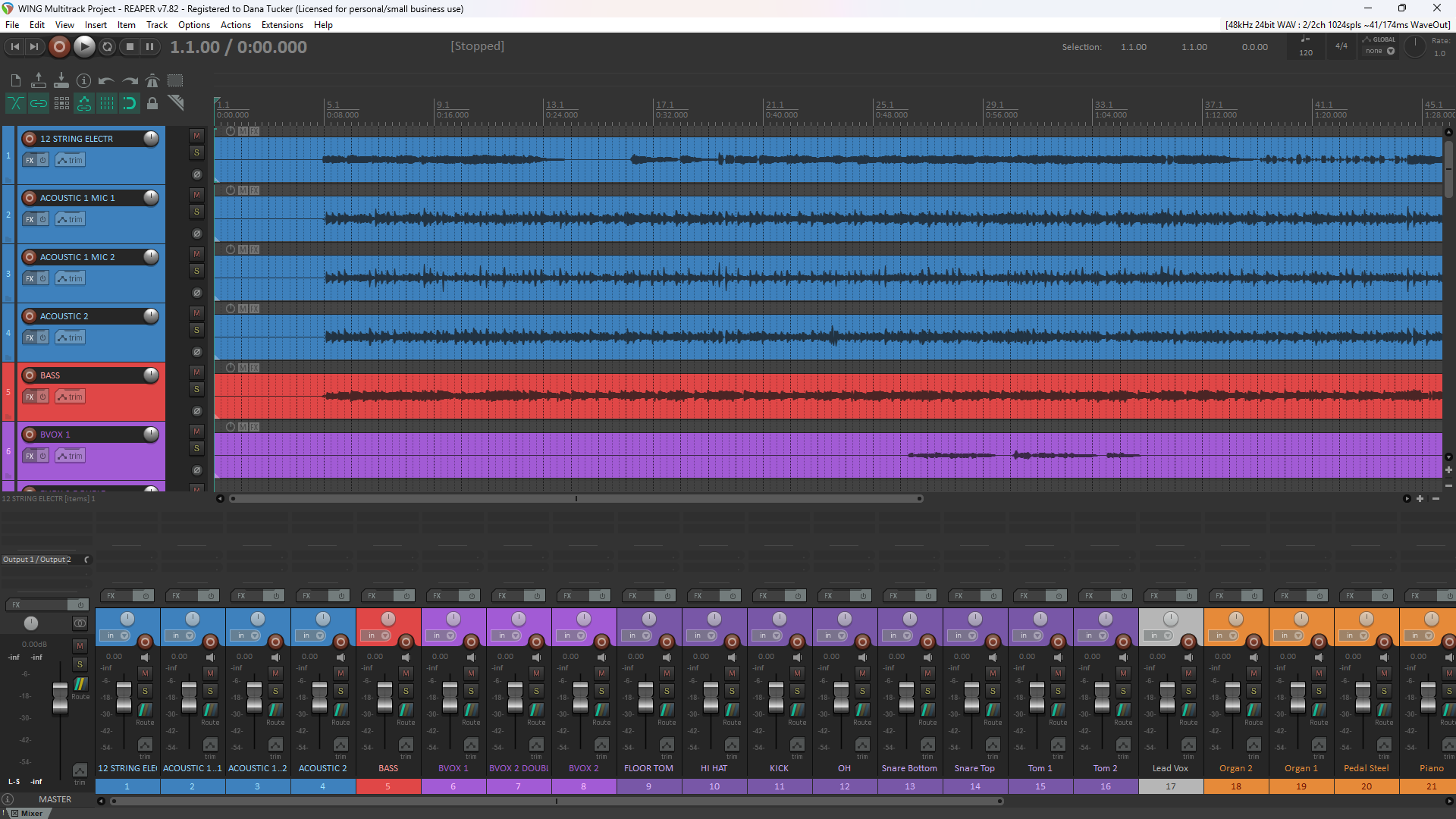
The Behringer WING can record multichannel audio using its WING LIVE SD card system. However, managing those recordings, identifying individual tracks, and organizing them in recording software can be time-consuming. The WING Multitrack Manager simplifies that process. Simply load your WING snapshot and multichannel WAV recording, review the proposed track assignments, and export.
The program can:
- Separate multichannel WAV recordings into individual audio tracks.
- Automatically name the tracks using the WING scribble-strip information.
- Match REAPER track colors to the corresponding WING channel colors.
- Identify recording routes that are enabled or turned OFF.
- Exclude unused recording routes from the exported REAPER project.
- Generate a ready-to-open REAPER project.
- Preserve the original audio without applying additional processing.
- Generate detailed reports about the mixer configuration.
The result is an organized recording session without manually naming and color-coding every track.
Your WING Snapshot Contains a Wealth of Information
A WING snapshot contains much more than channel names. It can include input assignments, routing, channel processing, dynamics, EQ, filters, insert assignments, buses, mains, matrices, and other mixer settings. The WING Multitrack Manager is being developed to examine this information and organize it into useful reports. Rather than simply showing you what a channel is named, the program can help you investigate how the mixer was configured to handle that signal. This is particularly useful when someone sends you a WING snapshot and multitrack recording and asks for help with their sound.
Detailed Excel Reports
One of the program’s most useful features is its ability to generate an Excel workbook containing multiple worksheets. These reports are designed to organize information such as:
Recording Tracks: Track numbers, proposed scribble-strip names, recording assignments, and channel information.
Signal Path Summary: An overview of the recording routes and their relationship to the mixer configuration.
Signal Path Details: More detailed information about available channel assignments and processing configurations.
Processor Inventory: Information about configured processing, including EQ, dynamics, and inserts.
Channel Parameters: Detailed settings extracted from the WING snapshot.
Virtual Soundcheck: Information to help distinguish raw recordings from processing applied during playback through the mixer.
The workbook uses organized columns and alternating row colors to make the information easier to read.
WING Signal Path Analyzer
The program also generates an HTML-based Signal Path Analyzer that can be opened in a web browser. This report helps you examine recording assignments, available source information, and configured processing. For example, you may be able to identify that a main output has dynamics processing configured or that an insert has been assigned. An important distinction: A snapshot can show how processing was configured, but that does not automatically prove the processing was included in the recorded audio. The analyzer identifies information that can be established from the snapshot and flags routing or recording tap points that still require verification.
Virtual Soundcheck Analysis
Virtual soundcheck is one of the most powerful features of modern digital mixing consoles. Instead of requiring the musicians to perform continuously while you make adjustments, you can play previously recorded raw multitrack audio back through the mixer. Each recording returns to its corresponding WING input channel, where you can adjust EQ, dynamics, inserts, FX, and routing just as you would during a live performance.
The WING Multitrack Manager includes a dedicated Virtual Soundcheck HTML report. This report helps explain the relationship between the recorded audio, the playback routing, and the processing configured on the WING. It’s an excellent resource for training, troubleshooting, and understanding the mixer signal path.
Designed for Audio Engineers, Churches, and Worship Teams
I have spent decades working with analog and digital audio mixing consoles, and one thing I’ve learned is that understanding signal flow is essential to producing great sound. My goal with this software is to make that information easier to access and understand. Whether you’re an experienced engineer or someone just learning the Behringer WING, I want this program to help you spend less time organizing files and more time learning, mixing, and improving your sound.
Simple to Use — No Programming Required
Our goal for the finished release is a standalone Windows application. That means you won’t need to install Python or learn computer programming.
The intended process is straightforward:
- Download and open WING Multitrack Manager.
- Load your Behringer WING snapshot file.
- Select your WING LIVE multichannel recording files.
- Review the recording track assignments.
- Click Export.
The program will create your individual WAV tracks, REAPER or Other DAW projects, Excel workbook, and HTML analysis reports. A built-in Help Center will provide instructions for using the program and understanding its reports. The audio engineering concepts, testing, and project direction come from Dana Tucker owner of D & L Recording Studio LLC. Please click here for download instructions as well as the download link.
D & L Recording Studio LLC — Helping Audio Engineers Mix With Confidence.